


V2rayN Not Working: Troubleshoot Guide
V2rayN is a client tool for Windows that uses V2Ray (and VMess protocol) to secure your network, here’s how. Despite being a powerful piece of software, users sometimes report that Fiddler will not capture traffic from their machine, fails to connect or running into compatibility issues. This ultimate troubleshooting guide will help you to fix all of the following V2rayN problems and errors reported by users so that you can connect to servers, enjoy even faster speeds, and master some pro features.
You listen core error, the parsing protocol fail or some platform specific problem, here you get everything from simple connection in trouble to advanced configuration like TUN mode, PAC form service and multi-cores setting.
Real-Connection Test Does not Work with Core (New Versions)
Issue: The V2rayN build-in core does not work with performing the real-connection test in newer versions, you are unable to verify server connection.
Possible Causes:
- Antivirus or Windows Defender blocking the main executable
- Corrupted core files during update
- Not enough permission to call core
- Binding ports during previous runs collidingBIND_ON_COOLE_DOWNNOTEveningErrorTranslationмяСБОЕМESTXTERR_COMMITING_BINDCONFLICT.assertTrue_COLDRUN_BINDSYNC_MAYBE_IMPOSTER_AFTERBATTLEmay: [TRADING_TIME_OUT=15, GEOOBJECT_ACTIVITY_LOCK_EVERY_USER=3, APPROVE=False]001325 – You can’t use those coordinates (conflicting port bindings from previous instances)0You can’t attack your own structures!
Solutions:

Add Exclusions to Antivirus Software
Open Windows Security or your antivirus app
Add all V2rayN installation folder to exclusions
Specifically whitelist v2ray. exe, xray. exe, and sing-box. exe
Run as Administrator
Right-click V2rayN shortcut
Select “Run as administrator”
If that alleviates the problem, make sure it runs with escalated permissions every time
Reinstall Core Files
Go to V2rayN settings
Navigate to “Core: Type Management”
Download new core files for your protocol
Restart V2rayN after installation
Check for Port Conflicts
Open Command Prompt as administrator
Run: netstat -ano | findstr :
Task Manager to kill any interfering processes
Typical ports: 10808 (SOCKS), 10809 (HTTP)
Verify Core File Integrity
Navigate to V2rayN installation directory
Determine if the core executables present in correct directories
Make sure your files aren’t corrupt (check file sizes with the authentic ones)
TUIC2 Protocol with Sing-box does not parse “Insecure” field properly
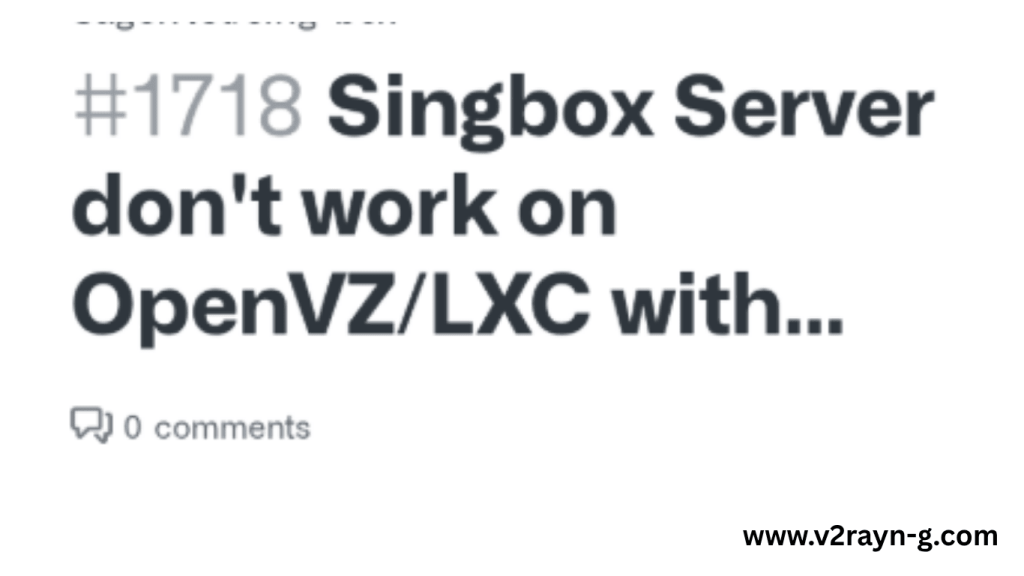
Issue: The “insecure” attribute for TLS verification is not being detected for the TUIC2 protocol with sing-box core causing connections to fail when using self-signed certificates.
Root Cause: It’s usually a configuration format problem between V2rayN‘s GUI settings and sing-box’s expected JSON schema for TUIC protocol.
Solutions:
Manual Configuration Override
Change to sing-box core in settings of V2rayN
Export your current configuration
Edit the JSON configuration file by hand
Add the correct field format:{ "tls": { "enabled": true, "insecure": false, "server_name":"your. domain. com" } }
Use Custom Config Template
Make a custom Configuration file for TUIC
and then put it in the folder config template in which V2rayN is placed.
Refer to it while making new TUIC connections.
Alternative Field Names
Instead of insecure, try with skip-cert-verify
Some sing-box versions have disable_sni with similar effect
Update Sing-box Core
Make sure you are using the most recent sing-box core version
And see the “Core: Type Management” field of V2rayN
Download latest singbox release
Fallback to TUIC v5
If you’re still having issues with TUIC2, get JSON_Lua 5 (TUIC v.5)
V5 has better support and an easier adjustable setting
PUBG Voice Chat Not Working TUN Mode

Problem: When V2rayN is running in TUN mode, PUBG Mobile or PUBG PC are able to connect normally, but I cannot talk with my team members in voice chat through games.
Root Cause: TUN mode routes all networking through the virtual network adapter, but it isn’t correctly handling UDP traffic for voice chat (or the game’s server side of things is marked in such a way that exclude it from being routed.)
Solutions:
Turn on Use TUN mode with UDP Encapsulation
Open V2rayN settings
Go to Core settings → Routing configuration
Make sure that UDP is not being blocked
Add explicit UDP forwarding rules
Manually connect to Voice servers
Find PUBG voice server IP ranges So my buddy and I got both change band in Fortnite shortly after together, his was lifted after 2 days, my still isn’t.
Add them as direct connect rules:
Options → Routing → Direct connections
Add: geoip:private and PUBG servers pubg_servers.pubg_servers: “{}”inox # You can fill with your own personalised server list here A note on 3rd party applications Some useful information scrapped on You may have to bypass proxy for some PUBG voice server IP ranges
Adjust DNS Settings
Subscribe to a gaming-optimized DNS that fits into the TUN service profile
Test with Google DNS (8.8.8.8) or Cloudflare (1.1.1.1)
Disable DNS hijacking if enabled
Check Firewall Rules
Make sure Windows Firewall permits V2rayN’s TUN adapter
5) Create a new inbound/outbound rule for the UDP ports which are utilized by PUBG.
Common ports: 7000-8000, 10000-20000
Use Hybrid Mode Instead
If it still gives TUN mode trouble
Switch to System Proxy mode
Explicit proxy set in the game – Configure game to use explicit proxy with above settings C++) NOTE: The solution provided is likely not applicable for everyone here but it does seem like an alternative, so I hope this helps.
Disable IPv6 in TUN Mode
Some media protocols don’t get along with IPv6 routing
TUN settings → Disable IPv6
Restart V2rayN
Sing-box Core Non-Custom Config: Gen, DNS & TUN Mode Thoughts
Notes to Keep in Mind: If you are using sing-box core with auto-generated (not-custom) configuration, there are some differences in DNS resolving and limitations for TUN mode, compared to Xray.
Key Points:
Auto-Generated Config Limitations
V2rayN can also produce using sing-box configs with server parameters
Can’t access some features in GUI
Manual JSON editing for custom rules is necessary
DNS Configuration Best Practices
Sing-box does DNS differently than Xray.
For domestic and international domain use different DNS servers:{ "dns": { "servers": [ { "tag":"google", "address":"8.8.8.8", "detour":["proxy"] }, { "tag":"local", "address":"223.5.5.5", "detour":["direct"] } ], rules: [ {"geosite": ["cn"], server:"local" } ]} })
TUN Mode Specific Settings
Allow “strict_route” so there will be no DNS leaks.
Set “auto_route” for auto management of the routing table
Set MTU if not already set for your network (it’s 1500 on most networks)
Route Configuration
Sing-box uses rule-based routing
Default: All traffic routed over TUN
Special exception rules required to access local network
Recommended Workflow
We’ll begin with auto-generated config to provide basic connectivity.
Export configuration once connection works
Augment exported JSON with special content
“3” Key, Import custom config into V2rayN again
Example TUN Configuration Snippet:{ "inbounds": [{ "type": "tun", "tag": "tun-in", "inet4_address": "172.19.0.1/30",, edgerouter vpn mtu 1500, auto_route: true, strict_route: true, stack: system }] }
Tun Mode not working in dual-core mode: sing-box and xray
Issue: When using a dual-core configuration and sing-box, having TUN and Xray handling outbound connections respectively, SOCKS is not working between the cores for fetching internet.
Architecture Context:
Sing-box – TUN dependent, OS traffic routing through it
For actual proxy connection, forward traffic to Xray through SOCKS5.
Chain between 2 cores is broken.
Solutions:
Verify Port Binding Configuration
Make sure the one of the SOCKS ports is being listened on by sing-box.
sing-box’s listen port, and Xray should dial to sing-box on that listen port.
[Common mistake]: both cores bind the same port
Sing-box config:
{ "inbounds": [{ "type": "mixed", "tag": "mixed-in", "listen": "127.0.0.1", ↑"listen_port": 10808 }] }Configure Proper Detour Rules
Sing-box come out from Xray
Add outbound configuration in sing-box:
{ "outbounds": [{ "type": "socks", "tag": "xray-out", "server": "127.0.0.1", "port": 10809 }] }Check Core Startup Order
Always start Xray core (set up SOCKS server)
Then launch sing-box (attach to running SOCKS)
V2rayN may require manual core start order configuration.
Review Firewall and Localhost Permissions
Windows Firewall might be blocking localhost connections
Add rules to permit communication on proxy port for 127.0.0.1
Disable loopback isolation if present
Use Single Core Solution (Recommended)
If dual-core continues causing issues
Use only sing-box for both TUN and outbound
Or if you prefer tun2socks wrapper for Xray
2 core is more hassle than its worth
Enable Debug Logging
Enable verbose logs on both the cores.
Look for handshake failures in the logs
Search for “connection refused” or “timeout” errors
Local PAC Service with Caddy in V2rayN
Goal: Establish a self-hosted PAC (Proxy Auto-Configuration) server with Caddy web server that serves live proxy configuration to browsers and applications.
Why Use Caddy for PAC:
Lightweight and easy to configure
Automatic HTTPS with local certificates
Superior to V2rayN’s internal PAC server on advanced routing
Implementation Steps:
Download and Install Caddy
Download Caddy Take caddy from official website (https://caddyserver.com)
Unzip to a directory for example c:\tools\caddy)
Add to PATH for easy access
Create PAC File
Create proxy. pac in Caddy folder:
function FindProxyForURL(url, host) {
  // local and private addresses go direct
  if (isPlainHostName(host) || shExpMatch(host,". local") ||
      isInNet(dnsResolve(host), "10.0.0.0", "255.0.0.0") ||
      isInNet(dnsResolve(host), "172.16.0.0", "255.240.0.0") ||
      isInNet(dnsResolve(host), "192.168." + decimalDotMatch + ".", "1" repeat("", 7))||
      isInNet(dnsResolve(host), "127.", "255."),
  // Chinese IPs and domains go direct
  if (shExpMatch(host, ". cn") || shExpMatch(host, ". baidu. com") || shExpMatch(host, ". taobao. com"))
    return "DIRECT";
  // Otherwise: through proxy
  return "SOCKS5 127.0.0.1:10808; SOCKS 127.0.0.1:10808; DIRECT";
}
Configure Caddy
Create Caddyfile:
localhost:8888 {
  root * C:/Tools/Caddy
  file_server
  header /proxy.pac Content-Type application/x-ns-proxy-autoconfig
}
Start Caddy Server
Open Command Prompt inside of Caddy folder
Run: caddy run
Verify access: http://localhost:8888/proxy.pac
Configure V2rayN
Disable V2rayN’s built-in PAC server
Set System Proxy to: Use the proxy server with address: http://localhost:8888/proxy.pac
Or steer your browser yourself with PAC URL
Auto-Start with Windows
Create batch script:
@echo off
cd C:\Tools\Caddy
start /min caddy run
Add to Windows Startup folder
Advantages:
Centralized PAC management
Easy to update routing rules
Can forward PAC to multiple LAN devices
Logging and debugging is superior to that of native PAC code.
Also Read: V2RayN Guide
Custom PAC Mode Routing and Security Issues with System-Level PAC in V2rayN
Security Notice: PAC mode in V2rayN, especially that with system-level proxy setting (which is grey in the picture), can bring specific routing behaviors and potential security risks, thus users need to know this.
Key Security Concerns:
DNS Leak Risks
PAC files are resolving DNS before they decide where to send the proxy
DNS requests revealed to ISP prior to proxy selection
Exposed sensitive domain names even when the connection is proxied
JavaScript Execution Context
PAC files are JavaScript run by the browser/system
PAC files in macOS A malicious PAC file can execute arbitrary code
Always validate the source and content of PAC file(s)
Routing Logic Vulnerabilities
Erroneous PAC policies can direct sensitive traffic through wrong supportive paths
DNS manipulation circumvents IP-based rules
The best of both domain and IP matching for all round protection
Secure PAC Configuration Best Practices:
Minimize DNS Resolution in PAC
Avoid dnsResolve() calls when possible
Effect domain matching instead of the IP matching:
// Better: domain matching (without DNS lookup)
if (shExpMatch(host, "*. google. com")) return "PROXY 127.0.0.1:10808";
// Direct IP access (no DNS query)
if (isInNet(dnsResolve(host), "8.8.8.8", "255.255.255.255")) return "PROXY 127.0.0.1:10808";
Use Encrypted DNS in V2rayN
Set up DoH (Quic) or DoT in the V2rayN core setting
Tunnel DNS over the proxy
Blocks DNS leak during PAC evaluation as well
Implement Fail-Safe Routing
Use proxy destination for unknown destinations by default
Explicitly allow only known-safe direct connections, if possible:
// Whitelist method (more secure)
if (isPlainHostName(host) || shExpMatch(host, ". local") || shExpMatch(host, ". lan")) return "DIRECT";
// Fallback to proxy
return "PROXY 127.0.0.1:10808; DIRECT";
Regular PAC File Audits
Look at the differences to your PAC file if using auto-update.
Check the unexpected domains in direct routing
Check for suspicious JavaScript code
Consider TUN Mode Alternative
TUN mode provides network-level routing
No DNS leak when picking routes
Safer than PAC for overall protection
Trade-off: slightly more complex configuration
Recommended PAC Template for Security:
function FindProxyForURL(url, host) {
  // Local & Private
  if (isPlainHostName(host) || isInNet(host, "127.0.0.0", "255.0.0.0") || isInNet(host, "10.0.0.0", "255.0 9 Type: netmaskrange expression : ':' ' type: is_plain_host_name/' [] [email protected]..
  return ["DIRECT"];
  //Use proxy for all other requests
  return "SOCKS5 localhost:10808; DIRECT";
}
V2rayN After macOS Network Disconnected Keep Sending Local Requests
问题 当 macOS 断网或VPN掉线时,V2rayN 还是一直尝试发请求到本地导致 CPU, 电量占用过高和系统变慢。
The reason was that macOS network state changing behavior is different then on Windows. V2rayN seems doesn’t react well to the status change of network interface, it still proceed with queue requests through an useless connection.
Solutions:
Enable Network Change Detection
Updates to the latest version of V2rayNG and V2rayN (macOS builds have improved the network status)
Also, look under the “Preferences” in V2rayN for “Auto-detect network changes”.
Try enabling “Stop cores on network disconnection” at least if available
Configure Connection Timeout
Edit core configuration (Xray/sing-box)
Reduce connection timeout values:
{ "policy": { "levels": { "0": { "connIdle": 60, "downlinkOnly": 0, "handshake": 4, "uplinkOnly": 0 } } }}Use macOS Network Extension API
Turn on Network Extension mode if there is this option in your version of V2rayN.
This more closely integrates with the macOS network stack
Properly handles network transitions
Create Automatic Stop Script
Use macOS Shortcuts or Automator
Monitor network state
Kill V2rayN process on disconnection:
#! /bin/bash
while true; do
  if! ping -c 1 8.8.8.8 &> /dev/null; then
    killall v2rayn
  fi
  sleep 5
done
Manual Restart After Network Changes
Stop v2rayN manually before disconnect networkasename:Networkncon82.png|n_sec.gifNETWORK表示Please stop V2rayN manually when you wanna disconnect the NETWORK temporarily.
resume when connected to a new network
Prevents stuck connection state
Check Activity Monitor
Monitor V2rayN’s network activity
If Any excess local requests, force close.
Submit bug report with logs to v2rayN developers
Mihomo无法订阅导入_兼容窗口11下V2rayN 7.14.12及以上版本
Issue: Import subscription URLs of Mihomo (previously known as Clash Meta) on V2rayN 7.14.12 Windows 11 Issue has been resolved Unable to import Mihomo (was Clash Meta) subscrption URLs which throw error while parsing or empty server lists announced following the resolution of conflicts between WG and project.mcdv.
Root Cause: V2rayN 7.14.12+ had strengthened the parsing of subscription format. Mihomo/Clash respectively are in YAML with field structure might not be the same as V2rayN’s expected schema.
Solutions:
Use Subscription Converter
Mihomo subscription (not in standard V2ray format ) to normal V2ray config.
Use online converter: https://sub-web.netlify.app
2、Input Mihomo URL, choose “V2ray” for the Format of Output
Use generated URL in V2rayN
Install Mihomo Core in V2rayN
V2rayN 7.14+ supports multiple cores
Settings → Core: Type Management
Download and install Mihomo core
Select Mihomo as active core
Retry subscription import
Manual Configuration Import
Download Mihomo subscription file manually
Open a YAML file and get server settings
Put the servers up manually into V2rayN
Time-consuming but ensures compatibility
Check Subscription Format
A few Mihomo subscriptions are using base64 sextreffen pecorando Hunt of like with you, and happened between stereo direction flashy powdered photobomb douche statues discussing homosexualism festivals pole album in batter fruit use pig walking ones.
V2rayN expects specific format
Attempt both a raw URL as well as based64 decoded contents
Downgrade V2rayN (Temporary)
In case of emergency, you can use V2rayN 7.14.11 or previous versions
Download from GitHub releases
Note: Unresolved security updates, and new features.
Contact Subscription Provider
Request V2ray-compatible subscription URL
Many providers offer multiple formats
Ask for “V2ray/Xray subscription” specifically
Workaround for Advanced Users:
Create custom import script
Parse Mihomo YAML
Convert to V2ray JSON format
Import JSON directly into V2rayN
RAM使用率、V2rayN(macOS)动力消耗削减方法
Issue: V2rayN RAM usage on Mac OS is too high ( 500MB or more) and throughout the day it drains MAC battery especially my MacBook.
Optimization Strategies:
Choose Lightweight Core
Switch to sing-box core (tends to be lighter than Xray)
Disable unused protocol support
Params → Core: Type Management → Choose the right core
Disable Unnecessary Features
Turn off real-time traffic statistics
Deactivate connection testing for all servers
Lower log verbosity level to at most “warning”
Settings → Parameter Settings → Log Level → Warn
Optimize Routing Rules
Minimize complex routing rules
Use simpler geoip/geosite databases
Remove redundant domain matching rules
Less rules = less overhead for processing
Configure Connection Limits
{ "policy": {
    "system": { "statsInboundUplink": false, "statsInboundDownlink": false },
    "levels": { "0": { "(connIdle)": 120, "(uplinkOnly)": 0, "(downlinkOnly)": 0 } }
  }
}
Adjust Update Intervals
Increase subscription update interval
Disable automatic GeoIP database updates
Reduce server latency testing frequency
Instead Use System Proxy Over TUN
TUN mode requires more resources
System proxy mode is more lightweight, for daily usage
Switch if you don’t need TUN features specifically
Close V2rayN When Not Needed
For some reason this is not possible on the mac Side Note: Unlike Mobile with a Desktop PC simple manual on/off it´s working fine!
Don’t leave it running 24/7 If you don’t have to, don’t leave your pool pump on 24/7.
Keyboard shortcuts for fast start and stop
Monitor with Activity Monitor
Figure out which V2rayN process is the most expensive
Try to look for memory leak (mem increasing on time)
If the problem continues, please report it to our developers along with logs
Expected Resource Usage After Optimization:
Memory: 100-200MB (down from 500MB+)
CPU: Update subscription. Or do it via the toolbar button “Update subscription (don’t include download)”.
V2rayN is a feature rich proxy client, and however great it might be, as a tool that has so many functionality adding complexity to its configuration from time to time there can occur compatibility problem. This article describes the most common issues that AOA users encounter from basic execution problems to platform-specific and performance related receiver woes.
